


November 19, 20269 min read
What is a code freeze? And what your Shopify store can still launch during one


If your developer is booked until January, or your agency just sent over a holiday calendar with a code freeze on it, nobody's going to touch your theme code for the next six weeks or so. That's a reasonable call for peak season. It doesn't mean your store has to sit still until the new year, though.
This guide explains what a code freeze is, why stores run one before peak season, and what it covers on Shopify. Then it walks through what you can still change, including how to add an AI shopping assistant to your store without writing or pasting any code, and ends with a checklist for the weeks around your freeze.
What is a code freeze?
A code freeze is a set period when a team stops changing a website's or app's code, so nothing new can break while the stakes are high. Ecommerce teams usually start one before Black Friday and keep it in place through the holiday rush. Fixes for something that's already broken can still go out during a freeze, but they normally need someone's sign-off first.
Code freeze vs feature freeze
The two terms get mixed up, and some definitions treat them as the same thing. A feature freeze stops new features from shipping, while bug fixes, performance patches, and other small changes keep going out. A code freeze is stricter, and almost nothing ships unless someone approves it as an exception. On software teams the feature freeze usually comes first, a few weeks before a release, with the code freeze following closer to launch.
You'll also hear "hard freeze" for a freeze enforced at the deployment level, where nobody can push code at all, and "soft freeze" for one where the team agrees not to ship but allows exceptions. The loosest version, sometimes called a code frost, is an informal agreement to make far fewer changes than usual, so small, low-risk updates can still go out.
Why ecommerce stores freeze code before peak season
A big share of the year's online sales lands in a few days. Adobe reported that US shoppers spent $44.2 billion online over Cyber Week 2025, the five days from Thanksgiving through Cyber Monday, up 7.7% from 2024, and Cyber Monday set a record as the biggest online shopping day ever, at $14.25 billion. A theme update that breaks your product page on a quiet Tuesday in March costs you an afternoon. The same bug on Black Friday costs you the weekend.
More traffic also means more shoppers hit any bug you ship, and pages that held up fine at October volumes can slow down or fail under holiday load. Checkout is where the risk is sharpest, because anything that touches the cart, discount codes, or payment turns a small mistake straight into lost orders. According to Inflow, many companies lock their code sometime between Halloween and Thanksgiving, so the version of the site that sees peak traffic is one that's already been tested on real shoppers.
Staffing matters too. At a small brand, the person who'd roll back a bad deploy is often one freelance developer or an agency, and they're on the same holiday schedule as everyone else.
What a code freeze looks like for a Shopify store
On a self-hosted site, a freeze covers servers, deployments, and the whole application. Shopify runs the hosting and checkout infrastructure for you, so your freeze covers a much smaller surface: your theme and anything custom you've added to it.
In practice, a Shopify code freeze usually means:
No edits to theme code (Liquid, CSS, or JavaScript files) and no new theme versions published
No new custom scripts or apps that inject code into your storefront
No big template or layout changes, even ones made in the theme editor, if your rule is that nobody touches the theme
Developer and agency work on hold until after the holidays
For a lot of small brands, that last one is the whole freeze. There's no formal change policy, just an agency whose calendar is full until January, so anything that needs a developer waits.
If you're planning a bigger move for next year, our ecommerce replatforming checklist includes when to set a freeze during a platform launch.
What you can still change during a code freeze
Most of what keeps a store selling in December lives in the Shopify admin, and none of it touches your theme code.
Content, products, and promotions
Product descriptions, photos, prices, collections, pages, and blog posts are all content you edit in the admin. So are discount codes, automatic discounts, and gift cards. That covers most of the work that matters in peak season anyway, like publishing a gift guide, updating your shipping cutoff dates, and moving best sellers to the top of a collection.
If you've got conversion ideas that need a developer, write them down and plan the tests now so they're ready to run when the freeze lifts. Our ecommerce conversion rate optimization framework is a good place to start that list.
Store settings
Shipping rates, return windows, store policies, customer notifications, and markets all live under Settings in your admin. Changing them doesn't touch code, but some of them affect checkout directly. Change one setting at a time, and place a test order after anything that touches shipping, taxes, or payments.
Apps you switch on in the theme editor
Shopify apps can add features to your storefront in two ways that don't involve editing theme code. App blocks are pieces you place inside a section of a page, like a reviews widget under a product description. App embeds are floating elements or overlays that show up across your store, like a chat bubble in the corner, or scripts that run in the background without showing anything to shoppers.
Shopify's help doc on apps in themes walks through turning on an app embed. In your admin, go to Online Store, click Edit theme, open App embeds in the sidebar, switch on the embed you want, and click Save. Shopify notes that you can turn app embeds on, turn them off, and customize them from the theme editor, so nobody has to open your theme files, and backing one out is the same toggle.
Some apps still ask you to paste a snippet into your theme's code, and those are the ones to hold until the freeze lifts. Before you install anything in December, check the app's setup instructions for an app embed or app block.
Launching AI during a code freeze with the Gladly Shopify app
An AI shopping assistant is a good fit for a freeze-period launch. It installs as an app, and peak season is when shoppers have the most questions before they buy, about sizing, gift ideas, or whether something will arrive in time. If you're new to the category, our guide to AI shopping assistants covers what they do.
Gladly: AI Shopping Assistant is on the Shopify App Store. It helps shoppers find and buy the right product in chat, with AI that remembers them after the sale.
There's no code to write or paste. During setup, the app takes you to your theme editor, where you switch on Gladly Chat and click Save.
Because nobody edits theme code, the install fits most freeze rules without a developer. If your rules also cover the theme editor, the Gladly Chat toggle is a small exception to ask for, and you can switch it off the same way. Gladly is free for 30 days, with no credit card required. You can see what Gladly's AI does for Shopify stores or browse more of our Shopify resources.
Try Gladly AI right here
Thinking about launching AI during your freeze? Ask Gladly AI.
Get a practical answer in seconds, from AI built for retail.
A code freeze checklist for Shopify stores
Use this list to plan the weeks around your freeze. Adjust it to whatever your team or agency has agreed the freeze covers.
Before the freeze
Ship any theme changes you need for the holidays early enough that they run on real traffic for a while before the freeze starts.
Write down what the freeze covers (theme code, the theme editor, app installs, store settings) and who can approve an exception.
Duplicate your live theme so you have a known-good copy to roll back to.
If you can, install and set up the apps you want running in December now, and note which ones only need an app embed or app block.
Place a test order from start to finish, using the discount codes you plan to run.
During the freeze
Keep making content, product, and promotion changes in the admin as usual.
Change store settings one at a time, and place a test order after anything that touches shipping, taxes, or payments.
Only turn on apps that use app embeds or app blocks, and preview your store after each one.
Keep a log of every change, even small ones, so you know where to look first if something breaks.
After the freeze
Go through the list of work you parked and ship it in small batches, testing after each one.
Look back at what shoppers asked about most over the holidays, and use it to plan next year's freeze.
Add Gladly to your Shopify store
Install Gladly: AI Shopping Assistant from the Shopify App Store and switch it on in your theme editor, with no code to write or paste. It's free for 30 days, no credit card required.

Frequently asked questions
Recommended reading

What an AI shopping assistant does and how to choose one for your store
How AI shopping assistants work, what Smith Optics, Tecovas and KÜHL saw, and how to choose and measure one for your store.
By
Gladly Editorial

15 best Shopify apps to help small businesses scale in 2026
The 15 best Shopify apps for small businesses, sorted by category, with the best free apps, Shopify Plus notes, and what to set up before Black Friday.
By
Gladly Editorial
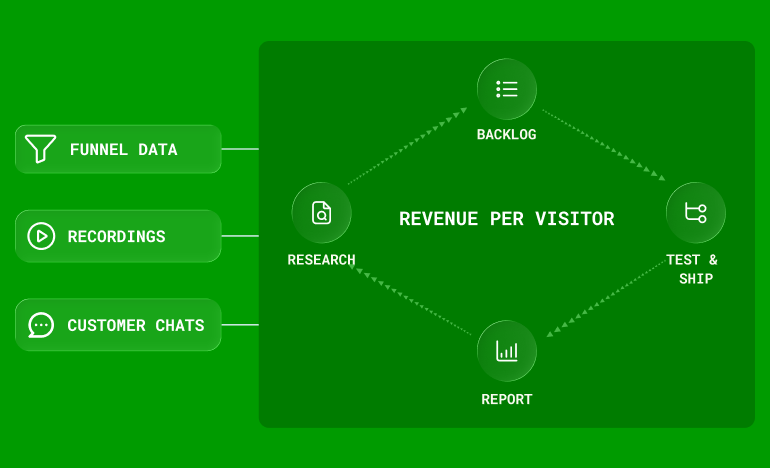
Ecommerce conversion rate optimization, a complete framework
How to run ecommerce CRO as a monthly program: research that feeds a backlog, where to focus first, how to sequence tests, and how to report wins in revenue.
By
Andrew Bennett