



As your ecommerce business grows and expands, you will likely need to update and reconsider your store platform of choice. From eBay to Etsy, there is a virtual flood of host options which cater to the unique and varied needs of web-based businesses.
WooCommerce, an open-source plugin for WordPress, is one of the top ranked free ecommerce platforms on the market today, making it extraordinarily popular among greener online retailers. Shopify, the world’s leading subscription-based ecommerce solution, represents the next step store owners might take during the expansion of their business.
In this article, we detail the pros and cons of each of these popular platforms, as well as why and how to migrate from WooCommerce to Shopify.
WooCommerce vs. Shopify
The needs and financial capabilities of your business will ultimately determine which platform is right for you. Understanding the benefits and pitfalls of either WooCommerce or Shopify can help you to make the best decision.
WooCommerce pros and cons
Pros of WooCommerce
WooCommerce is highly customizable. The initial free software provides basic functionality to turn your website into an online store. And paid upgrades and additions, including email, domain, support, etc., can create a more powerful platform for larger businesses.
WooCommerce offers a huge selection of both free and paid store themes. Free options are better used by skilled developers, while novices are better off purchasing one of the more user-friendly and comprehensive professional themes. Adjacent companies producing WooCommerce compatible themes include ThemeForest, among others.
Cons of WooCommerce
WooCommerce isn't beginner-friendly. Beginners on WooCommerce can begin with a preinstalled version, however the setup process, troubleshooting, and customization are difficult to work with for less experienced end-users.
The support systems of WooCommerce are not unified. Additional plugins, themes, and hosting mechanisms have distinct sources, meaning that WooCommerce doesn’t provide centralized support for all aspects of the solution. Troubleshooting and customer support is made extremely complicated, and can be very frustrating.
Shopify pros and cons
Pros of Shopify
Shopify is highly accessible as a paid platform. Their starter plan, called "Shopify Lite" starts at just $9 per month, allowing unlimited sales for retailers. Advanced Shopify, the company’s highest tier solution, costs $300 a month, and includes all features available, designed for scaling your business. Basic is $29 a month, and their standard is $79 a month.
Shopify’s product category handling is intelligent and easy to use. Smaller retailers have the option to manually add products to a collection or category, while larger ecommerce businesses can use automated collections to categorize items quickly and efficiently. You can implement rules within the platform which automatically categorize your products based on things like titles, tags, etc.
Shopify offers functions for both brick-and-mortar retailers and online businesses. For example, one feature offered by Shopify allows retailers to provide a ‘local pickup’ option. This feature allows customers to pick up their online orders at a retail store, curbside, or any location of your choice—which provides more flexibility (and helps them avoid expensive shipping rates!)
Cons of Shopify
Limits on product options. The platform sets a hard limit of 3 product options, limiting customizability on individual items. For example, a retailer selling rugs using Shopify can only offer 3 points of adjustment for each design -- they might allow the customer to select size, shape, and color, but at the expense of material, shag vs. knit, etc. Retailers wishing to offer more variants can download third-party apps which lift these limits, although they will likely be paid.
A con (or a pro, depending on who you are, really) Shopify allows users to write HTML customization into their site, allowing for high degrees of customization. However, some features not specifically included in the unmodified Shopify packages, including things like line items, or customer file uploads, must be written in by code-savvy users. If you can write HTML, the world of Shopify is yours, but for non-programmers, this can be an access barrier to certain features.
How to migrate from WooCommerce to Shopify: a step-by-step walkthrough
The move itself comes down to three things: getting your data out of WooCommerce cleanly, getting it into Shopify without losing anything, and keeping your search rankings and customer accounts intact along the way. Here's what that looks like in practice.
Back up your WooCommerce store first
Before you touch anything, export a full backup of your WordPress database and media library. Most hosts include one-click backups; if yours doesn't, a plugin like UpdraftPlus will do it in a few minutes. You want a way back if something goes wrong mid-migration.
Step 1: Export your WooCommerce data
In WordPress, go to Tools > Export and choose Products, or use WooCommerce's built-in Products > All Products > Export for a cleaner CSV with SKUs, prices, and variants already separated into columns. Export customers and orders the same way, into three separate files. If your catalog runs into the thousands of SKUs, a plugin like WP All Export will handle custom fields and product images more reliably than the default tool.
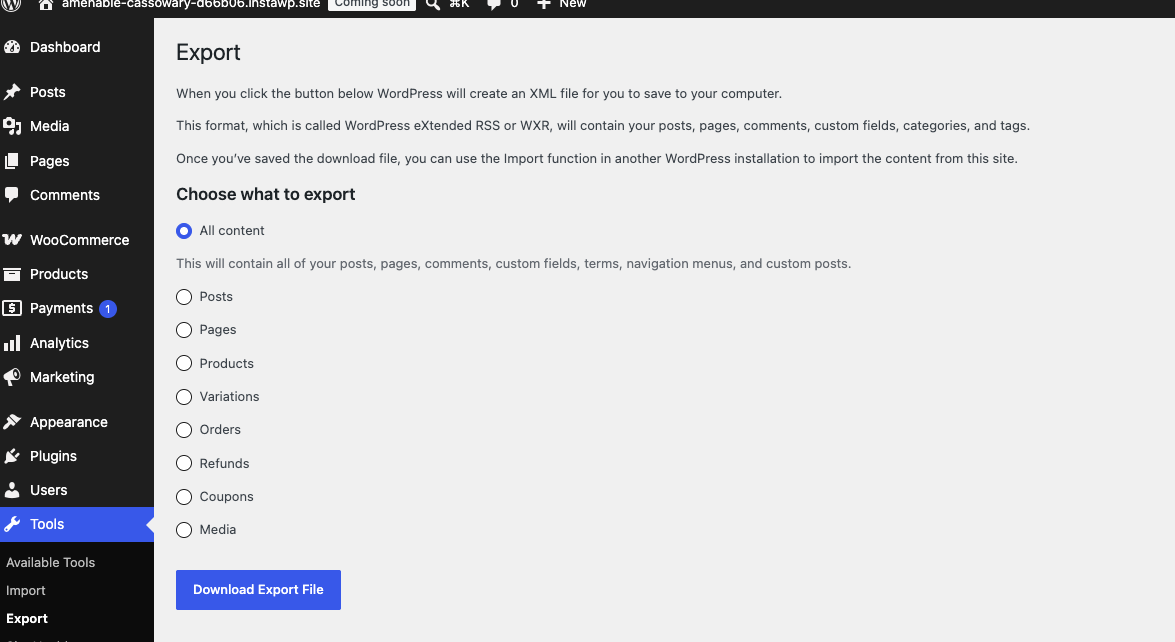
Step 2: Match your fields to Shopify's format
Shopify expects specific column headers, things like Handle, Title, Vendor, Variant SKU, and Variant Price. Open your WooCommerce export in a spreadsheet and rename the columns to match Shopify's product CSV template, which you can download from Shopify's own settings. This is also where you decide what to leave behind: plugin-specific data, like custom fields from Advanced Custom Fields or product add-ons, won't map automatically and usually needs to be rebuilt by hand in Shopify's metafields.
Step 3: Import into Shopify
From your Shopify admin, go to Settings > Data import and select CSV import for products, or use a migration app if you'd rather skip the manual formatting. Upload the reformatted file, review Shopify's field mapping, and run the import. Do a test import with a small batch of products first, since it's much easier to catch a mapping error on ten items than on three thousand.
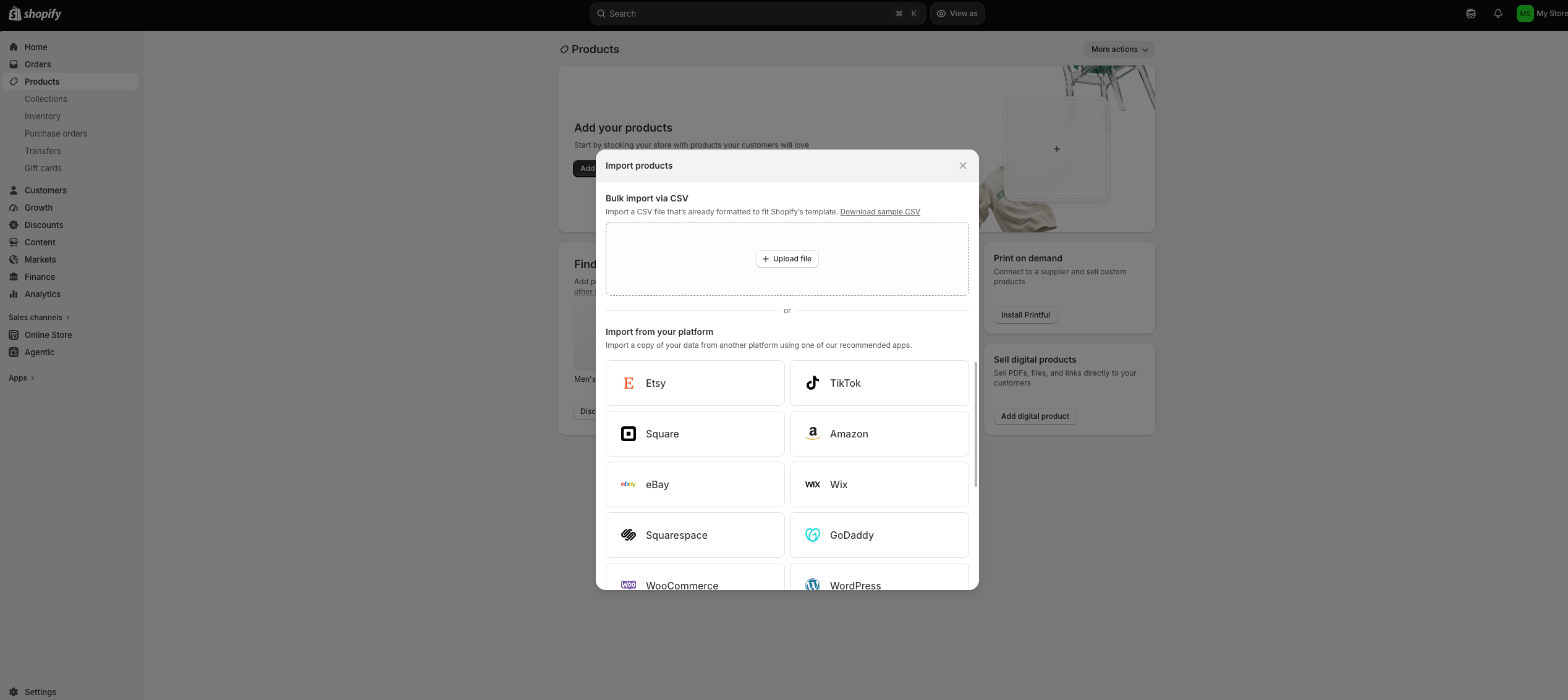
Step 4: Bring over customers and orders
Customer records import the same way, through a CSV, but passwords don't carry over between platforms. Every customer will need to reset theirs the first time they log in to your new Shopify store. Order history is trickier: most manual CSV imports don't handle historical orders well, so you'll likely need a migration app for that, or you can leave older orders in an archived WooCommerce instance for reference and start fresh order numbering in Shopify.
Step 5: Set up redirects before you launch
WooCommerce and Shopify structure URLs differently, so most of your product and category pages will get new URLs when you switch. Without 301 redirects from the old paths to the new ones, you lose the search rankings this guide is meant to help you keep. Map your old URLs to their Shopify equivalents in a spreadsheet, then set them up in Shopify's URL redirect settings, or through an app if the list runs into the hundreds.
Step 6: Test everything before you go live
Place a test order, confirm taxes and shipping rates calculated correctly, check that product images and variants display the way they should, and click through your top pages by traffic to make sure the redirects work. Small errors here are cheap to fix. The same errors after launch, with customers already checking out, are not.
Step 7: Point your domain to Shopify
Once everything checks out, update your domain's DNS settings to point to Shopify, and keep your WooCommerce site's URL live as a backup for a week or two in case you find something the QA pass missed.
How long does it take, and what does it cost?
For a store under a few hundred products with a straightforward catalog, plan on one to three days if you're doing the migration yourself. Stores with complex variants, thousands of SKUs, or years of order history usually take a week or more. A migration app typically runs from about $20 to $100 depending on how much data you're moving. Hiring a Shopify expert or agency costs more, usually somewhere between a few hundred and a few thousand dollars, but it buys you someone who has done this before and can catch the mapping errors and redirect gaps that eat up the most time when you're doing it solo.
Should you do it yourself or hire a Shopify expert?
DIY migration vs. hiring a Shopify expert
What to consider | Do it yourself | Hire a Shopify expert |
|---|---|---|
Cost | Free to about $100 for a migration app | A few hundred to a few thousand dollars |
Time | One to three days for small catalogs, a week or more for large ones | Often faster, since they've done this before |
Technical skill needed | Comfortable with CSVs, spreadsheets, and basic troubleshooting | None. They handle the mapping and cleanup |
Best for | Smaller catalogs with straightforward products | Large catalogs, complex variants, or a hard launch deadline |
Last word: migrating from WooCommerce to Shopify
You get to choose the ecommerce solution that’s best for you. If you’re a growing business that needs a new platform which allows you to stretch your retail wings, it might be time to migrate to Shopify.
Make service part of your Shopify migration plan
As you move your store to Shopify, see how Gladly gives your team full order history and customer context so you do not outgrow your first help desk.

Frequently asked questions
Recommended reading

Connecting Shopify to an Etsy shop
Whether online only or in a brick-and-mortar business, expanding your company to multiple platforms will always come with a fair share of challenges.
By
Angie Tran

Best Shopify integrations in 2026 to build a connected stack
Most Shopify apps create data silos. See 13 integrations organized by how they connect across support, marketing, and fulfillment.
By
Angie Tran

Shopify Plus basic training
If are looking for ways to reinvigorate your business, one of the most important steps you should be considering is providing Shopify Plus basic training.
By
Angie Tran